Guide 4 of 7
Setting Up Your Tools and Project Environment
When newcomers look at a software repository for the first time, the array of folders, dot-files, and configuration manifests can seem daunting. It is easy to worry that you have to manually create dozens of files before writing a single feature.
Here is the useful part: a coding assistant can create a starting project structure for you. You might type: “Initialize a new web project with a clean folder structure and local environment files.” The assistant can create starter files and install dependencies, but you still need to inspect the result.
Your job is not to memorize every boilerplate command. Your job is to understand the purpose of the important files so you can direct the assistant and check its work.
Understanding the project layout and its purpose
When an agent scaffolds your project, you will typically see a clean, standardized layout:
my-project/
├── AGENTS.md            # Agent rules and architectural boundaries
├── CLAUDE.md            # Specific rules for Claude Code
├── package.json         # Dependency registry and run scripts
├── .env                 # Private secrets and API keys (local only)
├── .gitignore           # The security shield blocking private files
├── src/                 # Application source code
│   ├── components/      # UI elements and page layouts
│   ├── pages/           # Website routes and endpoints
│   └── lib/             # Helper utilities and data models
└── public/              # Static media (images, icons, documents)
Each part serves a distinct, vital purpose:
src/(Source Code): This is the living heart of your application. Components, routing logic, and functions live here. An AI coding assistant will often make changes in this directory.public/(Static Assets): Files placed here—such as logos, hero pictures, or downloadable documents—are served directly to visitors without compilation or transformation.package.json(Project Manifest): The central registry for the packages your project depends on and the commands it can run, such asnpm run buildornpm run dev.AGENTS.mdandCLAUDE.md(Agent Rulebooks): Instructions written specifically for the AI agent. They inform the model about your preferred coding style, which libraries to use, and which directories to avoid modifying.
Why .gitignore matters
Among the files in a project, .gitignore is an important part of protecting private information.
Git records changes to files and can send them to remote platforms such as GitHub. If a private configuration file is not excluded, it may be included when you stage and commit your work.
This is why .gitignore is useful: it gives Git a rule for leaving selected files out.
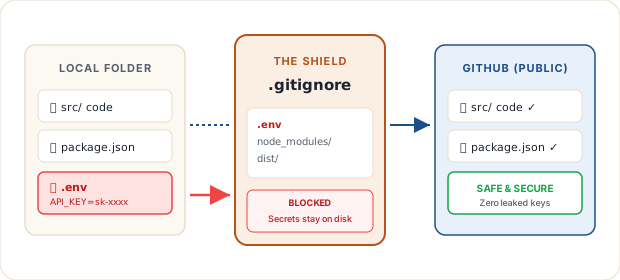
How the shield works
The .gitignore file contains file names and patterns. When you stage files, Git checks these patterns:
- A matching file is left out of the staged changes.
- It will not be included in that commit.
- It will not be sent to GitHub by that commit.
What to include in .gitignore
For a project that uses local secrets and build files, a typical .gitignore includes:
# Private secrets and API keys - NEVER COMMIT!
.env
.env.local
.env.*.local

# Dependency folders and build artifacts
node_modules/
dist/
.astro/
By ensuring that .env is listed inside .gitignore, you reduce the chance of accidentally committing local API keys. You should still check staged files before every commit.
Guiding the agent with AGENTS.md and CLAUDE.md
Once your folders and gitignore are in place, the primary lever for controlling your AI coding agent is the AGENTS.md file (or CLAUDE.md if using Claude Code).
Whenever an autonomous agent starts a session, the harness loads this file into the model’s primary memory window. Use it to establish clear guidelines:
- Project rules: “Always run the build check after editing components.”
- Design constraints: “Use standard Tailwind utility classes; do not write custom raw CSS.”
- Boundaries: “Never modify files outside
src/without asking first.”
With a well-structured AGENTS.md, you do not have to repeat your preferences every time you open a prompt. The agent reads the rules automatically and executes work that matches your established standards.
With the project structure understood and private files excluded, you can ask a coding assistant to make changes within clear boundaries. Review the files it changes, run the project checks, and keep the first version small.